

If you’re using New Outlook for Windows and can’t find Insert → Symbol, this is expected behaviour.
New Outlook is based on Outlook on the Web, and the classic Symbol dialog has been removed. The ribbon can’t be customised, and the Symbol option can’t be added back.
This is a product limitation, not a configuration issue.
Insert Symbols Using Windows (Recommended)
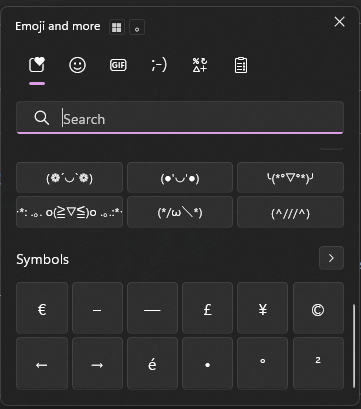
Although Outlook no longer includes a symbol picker, Windows does, and it works in New Outlook.
Steps:
- Place the cursor where you want the symbol
- Press Win + . (or Win + ;)
- Select Symbols (Arrow on the right)
- Choose Currency, or Punctuation etc as neeed
- Click the required symbol (€, £, etc.)
The symbol is inserted directly into the email.
Switch Back to Classic Outlook (If You Need the Symbol Menu)
Classic Outlook still includes Insert → Symbol.
Steps:
- Open Outlook
- Toggle “Try the new Outlook” (top‑right) to Off
- Confirm and restart Outlook
After switching back, symbols are available under:
New Email → Insert → Symbol
Summary
- New Outlook does not support the Symbol dialog
- Use Win + . for inserting symbols
- Switch back to Classic Outlook if you need the full Insert menu
That’s currently the only supported behaviour.
