
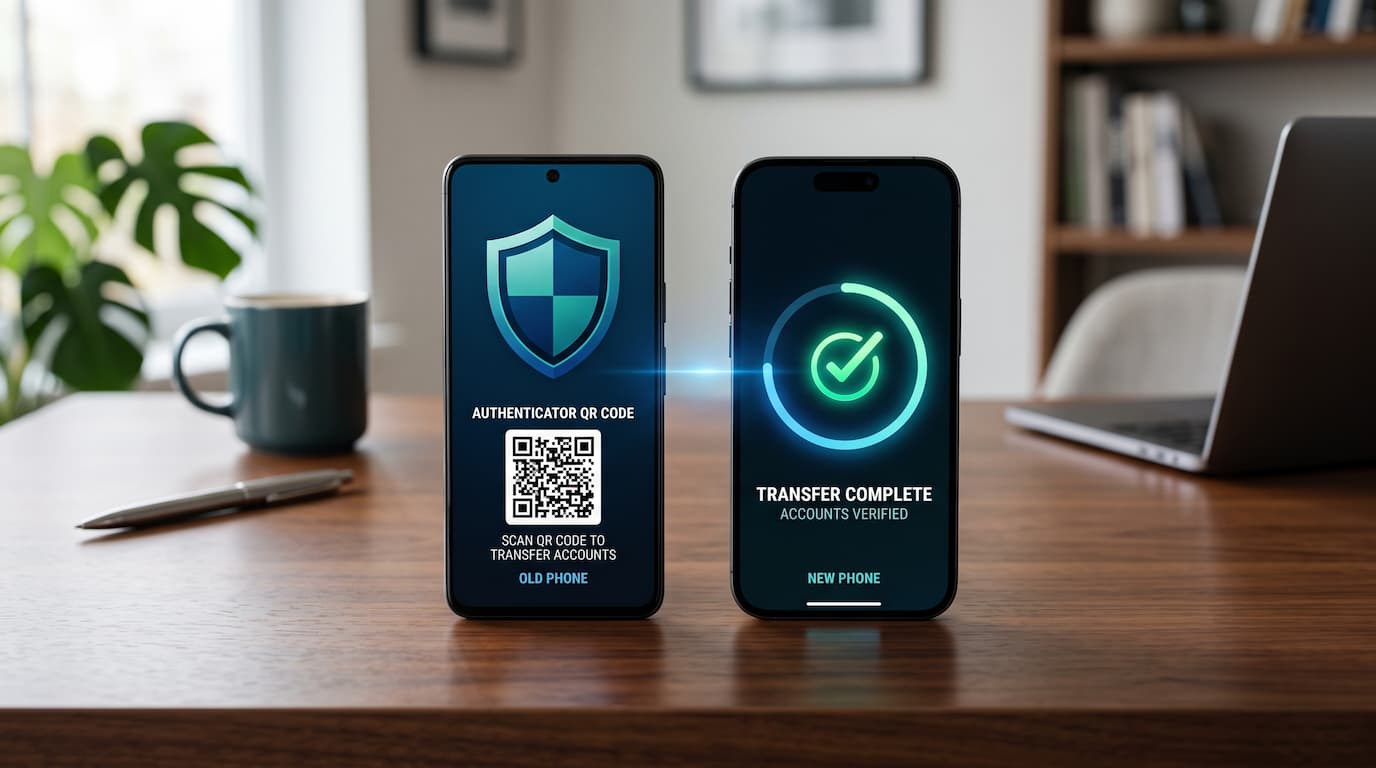
How to Transfer Microsoft Authenticator and Google Authenticator to a New Phone
Upgrading to a new phone is exciting—until you realize all your two-factor authentication (2FA) and multi-factor authentication (MFA) codes are still trapped on your old handset.
Getting locked out of your email, banking, or business portals is one of the most frustrating headaches when replacing a device. Fortunately, moving your accounts across is straightforward once you follow the right steps for your operating system.
1. Transferring Microsoft Authenticator
Microsoft Authenticator handles backups differently depending on whether you are using Android or iOS.
Android to Android
On Android, Microsoft Authenticator uses Microsoft Cloud Backup, which requires a personal Microsoft account (such as @outlook.com, @hotmail.com, or @live.com).
Note: Work or school Microsoft 365 accounts cannot be used as the backup destination.
On the Old Android Phone:
- Open Microsoft Authenticator.
- Tap the three dots (⋮) in the top corner and select Settings.
- Toggle on Cloud Backup.
- Sign in with your personal Microsoft account when prompted.
- Wait for the app to confirm the backup completed successfully.
On the New Android Phone:
- Download Microsoft Authenticator from the Google Play Store.
- Open the app and tap Begin Recovery (do not select “Add Account”).
- Sign in using the exact same personal Microsoft account used for the backup.
- Complete the on-screen prompts to restore your accounts.
iPhone to iPhone
On iOS, Microsoft Authenticator syncs encrypted credentials directly through your Apple ID via iCloud Backup.
On the Old iPhone:
- Make sure you are signed into your primary Apple ID.
- Go to Settings > [Your Name] > iCloud and verify that both iCloud Drive and iCloud Backup are enabled.
- Open Microsoft Authenticator, go to Settings, and turn on iCloud Backup.
- Confirm the backup has completed.
On the New iPhone:
- Sign into the new iPhone using the same Apple ID.
- Install Microsoft Authenticator from the App Store.
- Open the app and select Begin Recovery.
- Follow the prompts to restore your credentials from iCloud.
What to Expect After Restoring Microsoft Authenticator
- Personal accounts: Restore automatically and begin generating codes right away.
- Work or school accounts: Organizational security policies typically require you to sign back in and re-register the new device before push notifications and login prompts activate.
2. Transferring Google Authenticator
Google Authenticator provides two ways to move accounts: a direct QR Code Transfer or automatic Google Cloud Sync.
Method 1: Instant QR Code Transfer (Recommended)
This works across any setup: Android-to-Android, iPhone-to-iPhone, or cross-platform between Android and iOS.
On the Old Phone:
- Open Google Authenticator.
- Tap the menu/profile icon in the top corner and select Transfer accounts.
- Choose Export accounts.
- Select the accounts you want to transfer and tap Next.
- A transfer QR code will appear on screen.
On the New Phone:
- Install Google Authenticator from the Google Play Store or App Store.
- Open the app, tap Transfer accounts, and choose Import accounts.
- Scan the QR code displayed on the old phone screen.
- Your accounts and codes will instantly appear on the new phone.
Method 2: Google Cloud Sync
If your Google Authenticator is linked to your Google Account:
- Install Google Authenticator on your new phone.
- Sign in with the same Google Account used on your old device.
- Your one-time verification codes will sync automatically.
