
When a Microsoft 365 tenant becomes compromised, attackers commonly create large numbers of new guest accounts to maintain persistence or exfiltrate data. These accounts often stay unnoticed because Microsoft Entra ID (Azure AD) does not automatically alert on every new guest user creation.
In this guide, I’ll show you how to safely detect and remove guest accounts created in the last 7 days (or any number of days you choose), using a secure PowerShell script that processes users 50 at a time to avoid accidental mass deletion.
This procedure is especially valuable when:
- Your tenant has been compromised
- Unauthorised guest accounts are created
- External identities appear unexpectedly
- You want to perform routine hygiene checks
- You want a safe script that lists users first and only deletes upon confirmation
Let’s dive in.
Why Guest Accounts Matter During a Compromise
Microsoft 365 allows organisations to invite external users (guests) for B2B collaboration. However, during a compromise event, attackers often abuse guest creation to:
- Create persistence backdoors
- Share confidential data externally
- Set up unauthorised access paths
- Mask malicious activity
Guest accounts are especially dangerous because:
- They can be created quietly
- They can use home‑tenant credentials
- They appear legitimate in audit logs
- They may not require MFA
- Many organisations never review them
That’s why rapidly reviewing newly created guest users is an essential post‑incident task.
The PowerShell Script
This script will:
- Fetches all guest users
- Checks which ones were created in the last 7 days
- Lists them first
- Processes them in batches of 50
- Prompts you to type YES before deleting anything
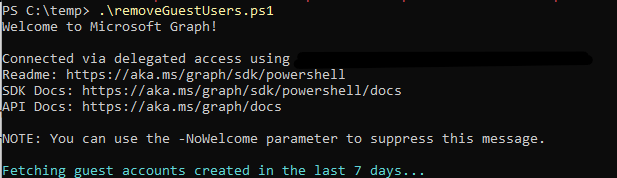
To use this script, simply copy the full code into a new file named removeguestusers.ps1 and save it on your workstation, preferably in a secure location such as C:\Scripts or a dedicated admin tools folder. Once saved, open PowerShell with administrative privileges and navigate to the directory where the script is stored using the cd command. Before running it for the first time, ensure your execution policy allows local scripts to run by executing Set-ExecutionPolicy RemoteSigned if required. When you’re ready, run the script by typing .\removeguestusers.ps1. The script will connect to Microsoft Graph, list all relevant guest accounts, display them in safe batches of 50, and then prompt you to confirm each deletion step by typing YES, ensuring nothing is removed without your explicit approval.
# Requires Microsoft Graph PowerShell SDK
Import-Module Microsoft.Graph.Users

Connect-MgGraph -Scopes "User.ReadWrite.All"

Write-Host "Retrieving ALL guest users (this may take a moment)..." -ForegroundColor Cyan

# Pull ALL guest users with the required properties
$allGuests = Get-MgUser -Filter "userType eq 'Guest'" -All -Property "id,displayName,userPrincipalName,createdDateTime"

if ($allGuests.Count -eq 0) {
    Write-Host "No guest accounts exist in the tenancy." -ForegroundColor Yellow
    return
}

Write-Host "Found $($allGuests.Count) total guest accounts." -ForegroundColor Green

# Show full list first for verification
Write-Host "`n=== COMPLETE GUEST USER LIST ==="
$allGuests | Select-Object DisplayName, UserPrincipalName, CreatedDateTime | Format-Table

# Calculate cutoff date
$cutoffDate = (Get-Date).ToUniversalTime().AddDays(-7)

# Now filter guests created in last x days
$recentGuests = $allGuests | Where-Object {
    $_.CreatedDateTime -and ($_.CreatedDateTime -ge $cutoffDate)
}

Write-Host "`nGuest users created in last 7 days: $($recentGuests.Count)" -ForegroundColor Cyan

if ($recentGuests.Count -eq 0) {
    Write-Host "No recent guest users detected." -ForegroundColor Yellow
    return
}

# Process in batches of 50
$batchSize = 50
$total = $recentGuests.Count
$index = 0

while ($index -lt $total) {

    $batch = $recentGuests[$index..([Math]::Min($index + $batchSize - 1, $total - 1))]

    Write-Host "`n=== BATCH OF $( $batch.Count ) USERS ===" -ForegroundColor Cyan
    $batch | Select-Object DisplayName, UserPrincipalName, CreatedDateTime | Format-Table

    $confirm = Read-Host "Delete this batch? Type YES to confirm"

    if ($confirm -eq "YES") {
        foreach ($user in $batch) {
            try {
                Write-Host "Deleting $($user.UserPrincipalName)..." -ForegroundColor Red
                Remove-MgUser -UserId $user.Id -ErrorAction Stop
            }
            catch {
                Write-Warning "Failed to delete $($user.UserPrincipalName): $_"
            }
        }
        Write-Host "Batch deleted." -ForegroundColor Green
    }
    else {
        Write-Host "Skipped batch." -ForegroundColor Yellow
    }

    $index += $batchSize
}

Write-Host "`nCompleted." -ForegroundColor Cyan
Once all guest users are foun and deleted as per the custon value, you will see below notification advising comfirmed.

You can customise the script easily by adjusting both the date filter and the batch size to suit your needs. The default configuration checks for guest accounts created within the last seven days by using the AddDays(-7) function, but you can change this value to any timeframe you prefer. For example, setting it to AddDays(-1) limits the search to the last 24 hours, while AddDays(-30) covers the past month, and AddDays(-365) captures a full year; using zero will process all guest accounts in the tenant. Similarly, the script processes users in batches, and the batch size is controlled by modifying the $batchSize = 50 value. Reducing this to 10 provides a slower, more cautious review process, increasing it to 100 suits larger environments where rapid processing is required, and using a value such as 500 is appropriate when you trust your filtering and want faster bulk clean‑ups.
